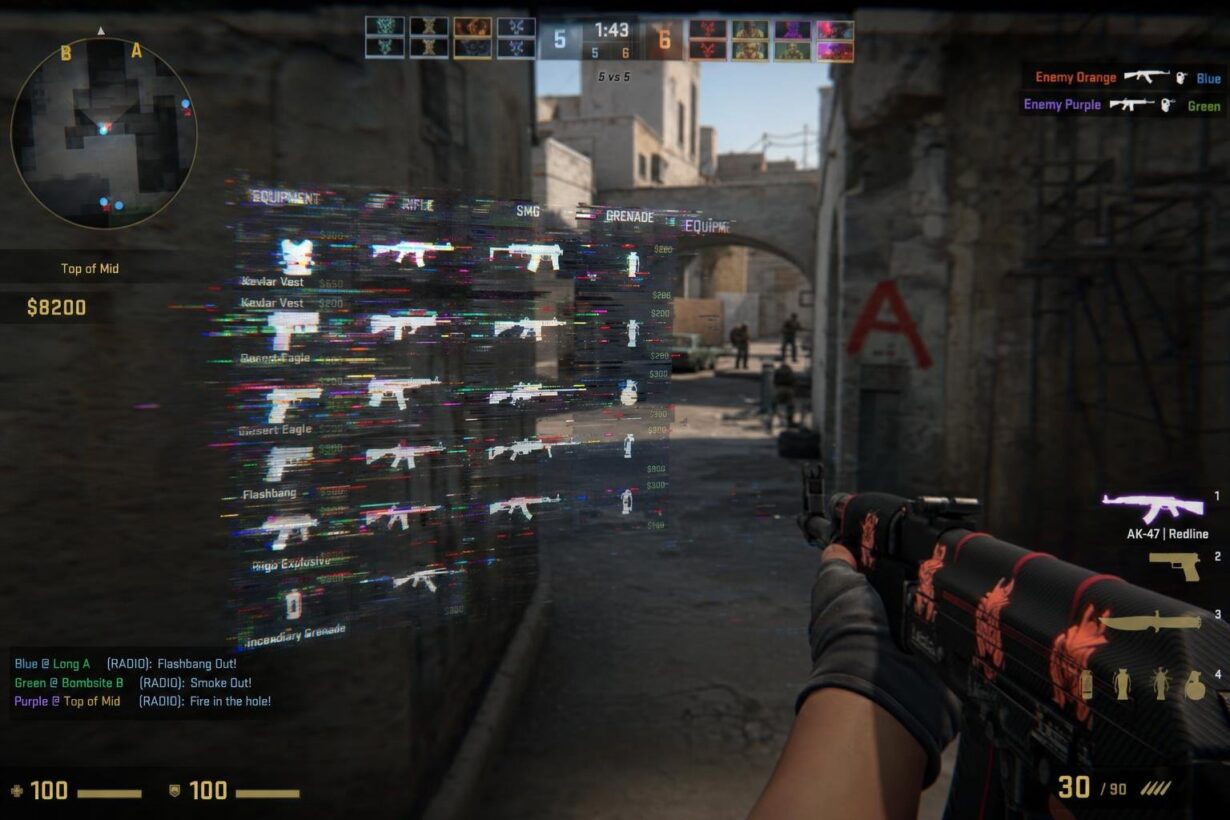

Your CS2 loadout HUD disappeared, and now you cannot see which weapons you are carrying at the bottom right of the screen. This is one of the most common interface complaints in Counter-Strike 2, and the fix usually takes less than 30 seconds. The cause is almost always a single setting or console variable that has been toggled off, not a bug that requires reinstalling the game.
The key is knowing which fix to apply, because a fading loadout panel and a completely missing HUD are two different problems with two different solutions. If only the weapon inventory strip fades out after a few seconds, you need the cl_showloadout command or a quick settings change. If your entire CS2 interface is gone, including the killfeed, health bar, and radar, a different command is responsible.
This guide walks you through both scenarios in the exact order you should try them. If you play CS2 and hunt for skins on platforms like Rewardly, you probably want to actually see your loadout on screen, so let’s get it fixed.
Restore the Weapon Display First
The most frequent version of this problem is a loadout panel that appears briefly when you switch weapons and then fades away. Counter-Strike 2 has a built-in behavior that hides the weapon strip after a few seconds of inactivity, and a single setting controls whether it stays visible permanently.
Change Settings > Game > Item > Always Show Inventory to Yes
This is the fastest path and requires no console commands at all.
-
Open the CS2 main menu.
-
Go to Settings > Game > Item.
-
Find Always Show Inventory and set it to Yes.
-
Click Apply or close the settings menu.
Your loadout strip will now remain visible at all times during a match. In my experience, this setting gets reset most often after major CS2 updates or when config files are modified by autoexec scripts.
Use cl_showloadout 1 in the Developer Console
If the settings menu path does not stick, or you want a quicker toggle mid-match, open your developer console and type:
cl_showloadout 1
Press Enter and the weapon inventory panel reappears immediately. Setting it to 0 hides it again. You can add this line to your autoexec.cfg file so it loads every time you launch CS2.
To enable the developer console, go to Settings > Game > Enable Developer Console and set it to Yes. Then press the tilde key (~) to open it.
Check Whether the Problem Is Only the Loadout Panel
Before moving on to more aggressive fixes, confirm that only the loadout strip is missing. Ask yourself:
-
Can you see your health and armor? If yes, your HUD is working. The issue is isolated to the loadout panel, and
cl_showloadout 1is the correct fix. -
Is the radar visible? If yes, the broader UI is intact.
-
Is the killfeed showing? If kills are appearing in the top right corner, you do not have a full HUD problem.
If all three answers are yes, you are done. If any of them are no, the problem is bigger than the loadout panel, and the next section covers that.
Fix a Broader Interface Glitch
When the entire CS2 HUD disappears, including health, ammo, radar, and killfeed, the cause is usually a console command that strips the interface for screenshots or cinematic recordings. Two commands control this, and they behave differently depending on server settings.
Reset the Hidden UI With cl_draw_only_deathnotices 0
This command removes every HUD element except the killfeed. It is commonly used by content creators and is easy to activate by accident if you are experimenting with console commands.
Open your developer console and type:
cl_draw_only_deathnotices 0
Press Enter. Your full CS2 HUD, including health, ammo, radar, crosshair, and loadout panel, should return instantly. This is the single most common cause of a completely blank screen in casual or competitive matches.
Know When cl_drawhud Requires sv_cheats 1
The cl_drawhud command toggles the entire interface on or off, but it only works when cheats are enabled on the server. If you are on a Valve matchmaking server, this command will not execute.
To use it on a private or community server:
sv_cheats 1
cl_drawhud 1
If you set cl_drawhud 0 during a local practice session and then forgot to reset it, your HUD will stay hidden until you re-enable cheats and type cl_drawhud 1. On official servers, this command is locked, so it cannot be the cause of a missing HUD in competitive play.
|
Command |
What It Controls |
Requires |
|---|---|---|
|
|
Weapon inventory strip only |
No |
|
|
Full HUD (except killfeed toggle) |
No |
|
|
Entire HUD on/off |
Yes |
|
|
Weapon model on screen |
Yes |
|
|
Crosshair visibility |
No |
Avoid Confusing Loadout Issues With Radar or Viewmodel Changes
Several other console variables affect parts of the CS2 interface that feel similar but are unrelated to the loadout panel.
-
r_drawviewmodel 0hides your weapon model (the gun in your hands) but does not touch the HUD. If your gun is invisible but the HUD is fine, this is the culprit. Reset it withr_drawviewmodel 1(requiressv_cheats 1). -
hud_scalingchanges the size of all HUD elements. If your loadout strip seems “gone” but is actually just tiny, tryhud_scaling 1to restore default size. -
cl_hud_radar_scaleandcl_radar_scaleonly affect the radar. Changing these will not fix a missing loadout panel. -
cl_hud_colorchanges the HUD color theme. If you set it to a color that blends with your background, elements might seem invisible.
When in doubt, verify your game files through Steam by right-clicking CS2 in your library, selecting Properties > Installed Files > Verify integrity of game files. This resets any corrupted config without deleting your custom settings. A full reinstall is a last resort and rarely necessary for HUD issues.