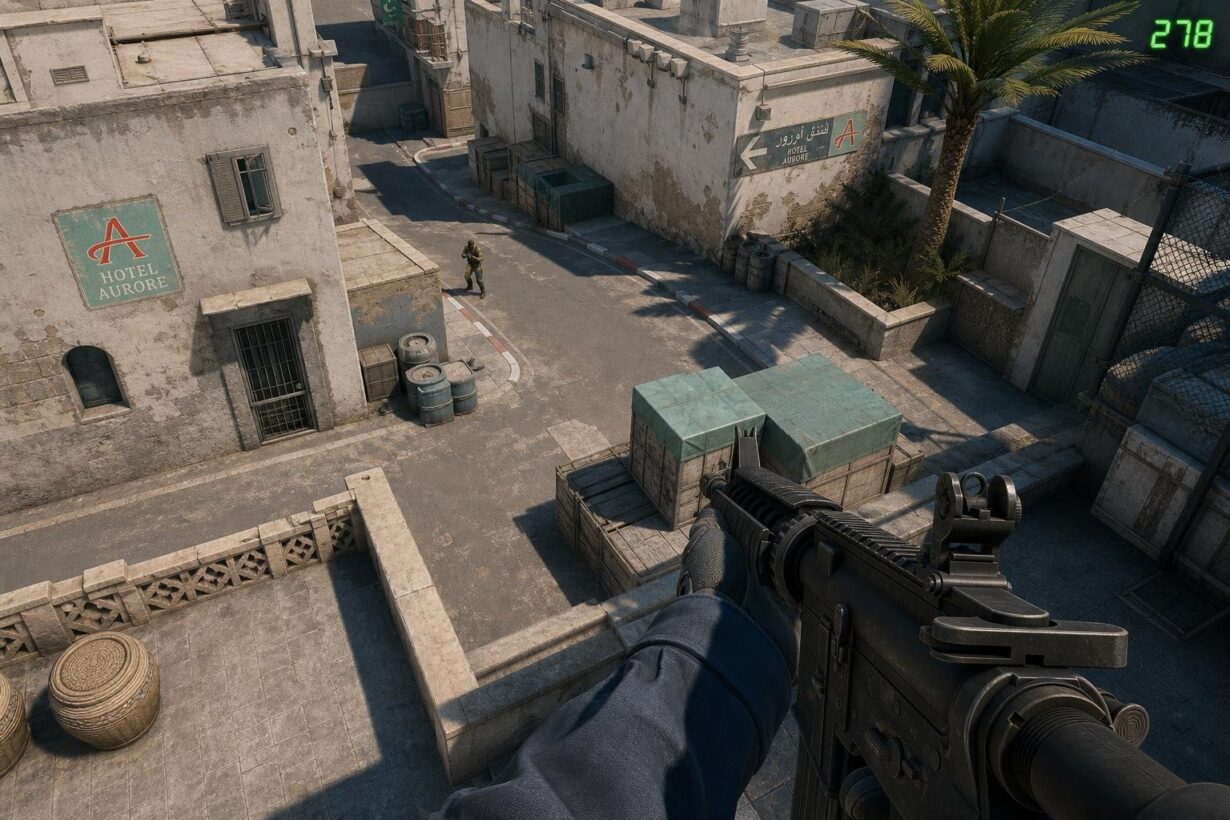

Keeping an eye on your frames per second in Counter-Strike 2 is one of the fastest ways to spot performance drops, confirm that a settings change actually helped, or diagnose stutter mid-match. If you specifically want to show FPS in the top right corner of CS2, the Steam Overlay’s in-game FPS counter is the method that gives you direct control over placement. The built-in telemetry option and the developer console command both work, but neither lets you choose the top right corner as precisely. Learning how to show fps in cs2 is vital for performance tuning, as tracking your cs2 fps ensures your hardware handles the updated engine smoothly.
The quickest path is three clicks inside your Steam settings: open the overlay, pick “Top-right” from the FPS counter dropdown, and you are done. Below, you will find the exact steps for that method plus the two CS2-native alternatives, so you can pick whichever fits your setup. If you are a gamer who also earns free CS2 skins on platforms like Rewardly, tracking your FPS helps you enjoy those hard-earned items at the smoothest frame rate your rig can deliver.
Get the Counter Into the Top Right Corner
The Steam Overlay FPS counter is the only built-in option that lets you pin your frames per second readout to a specific screen corner, including the top right. This is often the preferred method to show fps in cs2 without cluttering the main HUD. You can also toggle a high-contrast color so the number stays readable against bright maps, and there is a quick fix if the overlay refuses to appear.
Use the Steam Overlay FPS Counter
Follow these steps to place the counter exactly where you want it:
-
Open the Steam desktop client.
-
Click Steam in the top-left menu bar, then select Settings.
-
Navigate to the In Game tab on the left sidebar.
-
Find the In-game FPS counter dropdown.
-
Select Top-right from the four placement options (Top-left, Top-right, Bottom-left, Bottom-right).
Launch CS2 after saving, and a small FPS readout will appear in the top right corner of your screen. This counter works in every Steam game, not just Counter-Strike 2, so it persists across your entire library.
Turn On High Contrast Color for Better Visibility
Directly below the placement dropdown you will see a checkbox labeled High contrast color. Enable it. The counter text switches from a faint gray to a bright green, making it far easier to read during firefights or on light-colored maps like Dust 2.
I recommend always enabling this. The default color blends into most HUD elements and can be nearly invisible on certain backgrounds.
Fix Steam Overlay If the Counter Does Not Appear
If you set the option but see nothing in-game, check these common culprits:
-
Overlay disabled globally. In Steam → Settings → In Game, confirm that Enable the Steam Overlay while in-game is checked.
-
Overlay disabled per game. Right-click Counter-Strike 2 in your Steam Library, select Properties, and verify the overlay toggle is on.
-
Fullscreen Windowed mode. Some systems suppress the overlay in exclusive fullscreen. Switch CS2 to Fullscreen Windowed in Settings → Video and test again.
-
Third-party overlay conflict. Apps like Discord, GeForce Experience, or MSI Afterburner can interfere. Disable their overlays temporarily to isolate the issue.
After correcting any of those, restart CS2. The FPS counter should now appear in the top right corner.
Use CS2’s Built-In and Console Options
Counter-Strike 2 ships with two native ways to display FPS that do not depend on Steam’s overlay at all. The telemetry toggle in the game settings places a readout in the top right area of the screen and can also show frame time, while the developer console command cl_showfps 1 renders the counter in the top left. Knowing the difference saves you from hunting through menus when the number is not where you expected it.
Enable Telemetry in Settings → Game → Telemetry
This is the method built directly into the CS2 game settings UI:
-
Open Settings from the CS2 main menu.
-
Click the Game tab.
-
Scroll down to the Telemetry section.
-
Set Show frame time and FPS to Always.
The FPS number, along with an optional frame time graph, will appear toward the top right of your screen. This readout also exposes frame time data, which is more useful than raw FPS when diagnosing micro-stutter caused by your CPU, graphics card, or RAM bottlenecks.
If you only want the number and not the graph, experiment with the other dropdown values in the same section. Setting it to Always gives both, which is ideal for benchmarking after you close background apps or change video settings.
Show Frame Time and FPS From the Game Menu
The frame time line that accompanies the FPS readout is worth paying attention to. A steady 300 FPS looks great on paper, but if the frame time graph shows sharp spikes, you are still experiencing stutter.
Keep an eye on the graph after making changes like lowering shader quality or disabling dynamic lighting. A flat line means consistent frame delivery, which matters more for smooth gameplay than a high average number alone.
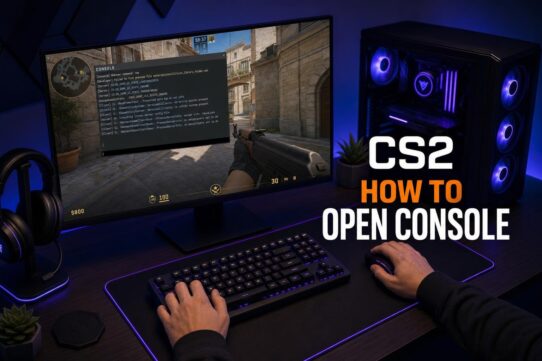
Enable Developer Console and Run the FPS Command
If you prefer a minimal, text-only counter and do not mind it appearing in the top left, you can use the cs2 developer console. Using a show fps command is a classic way to manage your HUD. The specific cs2 show fps command provides instant feedback during your match.
-
Go to Settings → Game and set Enable Developer Console to Yes.
-
Press the
~key (tilde) to open the console. -
Type the following command and press Enter:
cl_showfps 1
A plain-text FPS readout will display in the upper left corner. To turn it off, open the console again and run:
cl_showfps 0
Important distinction: cl_showfps 1 does not support top-right placement. If top-right positioning is your goal, use the Steam Overlay method or the telemetry setting described above. The console command is best suited for a quick, no-frills check when you are already in the console tweaking other settings like fps_max 0 to uncap your frame rate.