
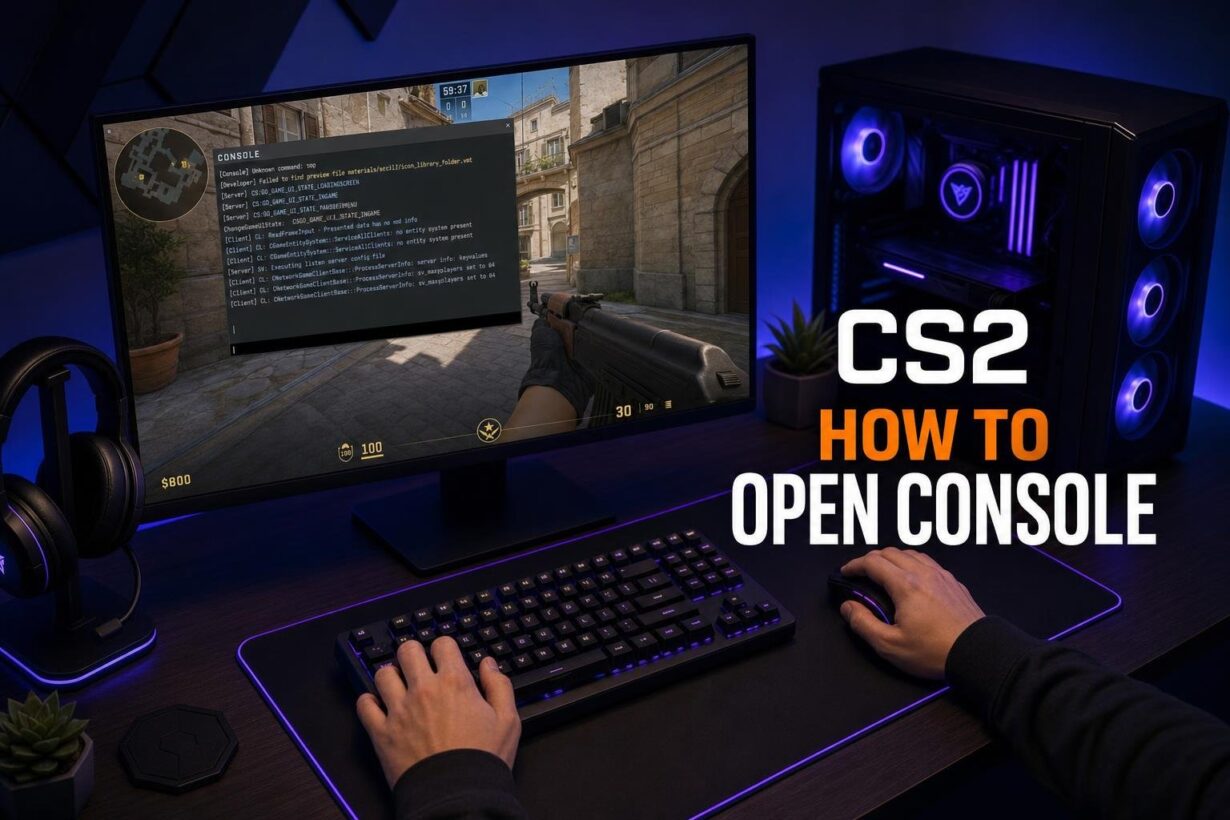

If you are searching for cs2 how to open console, the answer is straightforward: you need to access your CS2 settings first. Once there, you must enable developer console before you can press a key to bring it up. The CS2 developer console is disabled by default, which catches many new players off guard. Once activated, it gives you direct access to commands for customizing your crosshair, optimizing FPS, running practice modes with tools like noclip, and much more.
The entire process takes under a minute: flip one toggle in Settings, press the tilde key, and you are ready to type commands. This guide walks you through each step, covers how to rebind the key if tilde does not work on your keyboard, and includes quick fixes for the most common access problems. Whether you are fine-tuning your CS2 setup or exploring skins on Rewardly, learning cs2 how to open console is essential. Getting the console working allows you to use various cs2 console commands immediately.
Enable and Open the Console
You need to complete three things to get the CS2 console fully working: enable developer console in the CS2 settings, open it with the default key, and optionally rebind that key. Below is exactly how to do each one.
Turn On Enable Developer Console in Settings
This is the step most players miss. The console is locked behind a single toggle found within the CS2 settings menu.
-
Launch Counter-Strike 2 from your Steam library.
-
Click the gear icon in the top-left corner of the main menu to open Settings.
-
Select the Game tab at the top.
-
Under the Game sub-tab, scroll down until you see Enable Developer Console (~).
-
Set it to Yes.
That is it. The CS2 console is now ready because you chose to enable developer console. This setting stays active within your CS2 settings, so you only need to do this once.
Use the Default Tilde or Grave Key
With the developer console enabled, press the ~ (tilde/grave) key to open it. This key sits directly below Esc and to the left of 1 on a standard US QWERTY keyboard.
A semi-transparent text overlay will drop down from the top of your screen. You can type commands into the input field at the bottom of that overlay. Press the same key again to close it.
If nothing happens when you press tilde, do not worry. The next two sections cover rebinding and troubleshooting.
Rebind Toggle Console for Easier Access
Some players prefer a different key, and anyone on a non-US layout may need to rebind entirely. Here is how:
-
Open Settings from the main menu gear icon.
-
Go to the Keyboard / Mouse tab.
-
Scroll down to the UI Keys section.
-
Find Toggle Console.
-
Click the current binding and press your preferred key (common choices include F5, F8, or Home).
Your new key will work immediately. Test it right away by pressing it on the main menu to confirm the console opens.
Fix Common Access Problems
If the CS2 console still refuses to open after adjusting your CS2 settings, the issue usually comes down to a keyboard layout conflict or a missing keybind. Here are targeted fixes for each case.
Check Non-US Keyboard Layout Conflicts
The tilde key does not exist in the same position on AZERTY, QWERTZ, and several Nordic or Latin American layouts. On some layouts, the key produces a completely different character, so CS2 never registers it as the console toggle.
The fix is simple: rebind Toggle Console in Settings > Keyboard / Mouse > UI Keys to a universal key like F5 or Home. This bypasses the layout conflict entirely.
Try CS2 Launch Options if the Key Does Not Work
If rebinding inside the game is not possible because you cannot reach the console or menus are unresponsive, you can use CS2 launch options to force the console open:
-
Open Steam and right-click Counter-Strike 2 in your library.
-
Select Properties.
-
In the General tab, find the Launch Options field.
-
Type -console and close the window.
The next time you start CS2, the developer console will appear automatically on the main menu. From there, you can adjust your keybind through the settings as described earlier. You can remove the -console launch option once your keybind is working.
Confirm the Console Is Ready for Commands
Once the console is open, type a simple test command to verify everything works:
-
ping will show your current server latency.
-
status will display match and connection details.
If the console accepts input and returns output, your setup is complete. You are now free to explore CS2 console commands for crosshair tweaks, practice modes, performance tuning, and anything else your setup needs.
Frequently Asked Questions
Is using the developer console safe for VAC?
Yes, the developer console is a built-in feature. Using it to change settings or input standard commands will not result in a VAC ban.
How do I clear the console text?
If your console becomes cluttered, type clear into the input field and press Enter. This will wipe all previous text from the window.
Can I open the console while playing a match?
Yes, once enabled, you can open and close the console at any time, including during live matches, by pressing your assigned toggle key.